Class bookings Classes fill themselves.
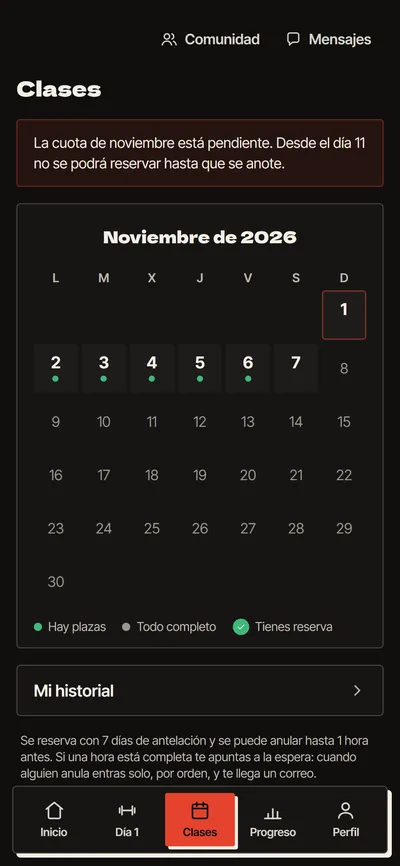
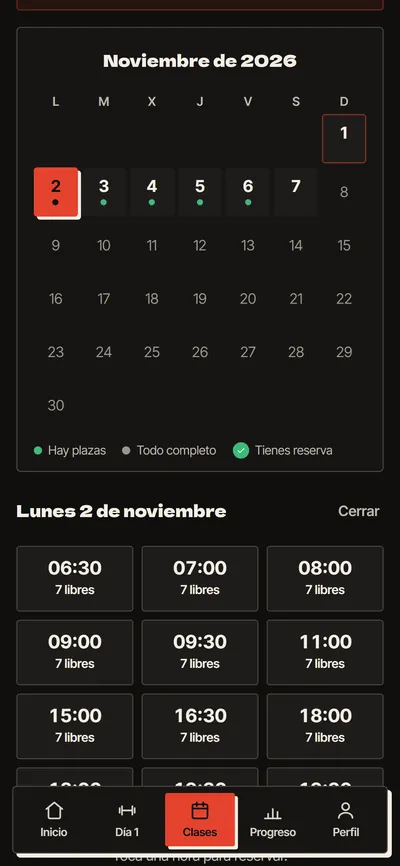
Your members see the calendar and the free spots, and book in three taps. If the class is full, they join the waiting list.
The waiting list moves by itself
When someone cancels, the first person waiting gets the spot without anyone lifting a finger, and receives an email. Try it: tap a blue ball.
- When someone cancels, the first person waiting gets the spot without anyone lifting a finger, and receives an email.
- You set the timetable, the spots and the instructor for each class.
- You see who is coming at each time and the order of the waiting list.
- Public holiday? You cancel that day's class and everyone booked is notified by email.
- A reminder before the class for members with a spot.
- Members who only come to classes go straight to the calendar, without a plan.
Questions about classes
How does the waiting list work?
If the class is full, the member joins the waiting list. When someone cancels, the first person waiting gets the spot without anyone lifting a finger, and receives an email.
Who sets the timetable and the spots?
You do: the timetable, the spots and the instructor for each class. You see who is coming at each time and the order of the waiting list.
What about public holidays?
You cancel that day's class and everyone booked is notified by email. Members with a spot also get a reminder before the class.
Does it work for members who only come to classes?
Yes. Members who only come to classes go straight to the calendar, without a training plan.